
Start with Quick Search
Quick Search is the main search mechanism in iBase. It appears in the header with the prompt Enter your search term... and works like a broad, Google-style search across indexed item data. Depending on configuration, broad searching may also support fuzzy matching and suggested terms.
Use it when you want to search widely across the system and do not yet need to limit the search to a specific field, label, subject, place or folder. Indexed data typically includes descriptive metadata and technical file metadata, but the exact indexed fields can vary by system configuration.
- Click the Quick Search field in the header.
- Enter one or more search terms.
- Submit the search.
- Review the result list and use Search Within, Display Options or Save Search if the result set needs refining or reuse.
- The header Quick Search field prompts Enter your search term....
- Search Within appears on result lists after a search.
- Include PDF text can appear where PDF text is available for the current search context.
- Display Options, Save Search and result controls help refine how the list is reviewed or reused.
Choose a Targeted Search Route
The Search menu provides targeted alternatives when Quick Search is too broad, including Field Search, Subject Search, Label Search, Location Search, Explore All, Locked Items, Recent Uploads, Your Searches, Selections, Items in Trash and Comment Moderation.
- Use Field Search when you know the metadata fields you want to search.
- Use Subject Search, Label Search or Location Search when controlled terms or places are the best starting point.
- Use Explore All to browse a broad result set without entering search terms.
- Use Your Searches to return to saved or recent searches where the same criteria need repeat use.
- Use Locked Items, Recent Uploads, Items in Trash and Comment Moderation for operational review.
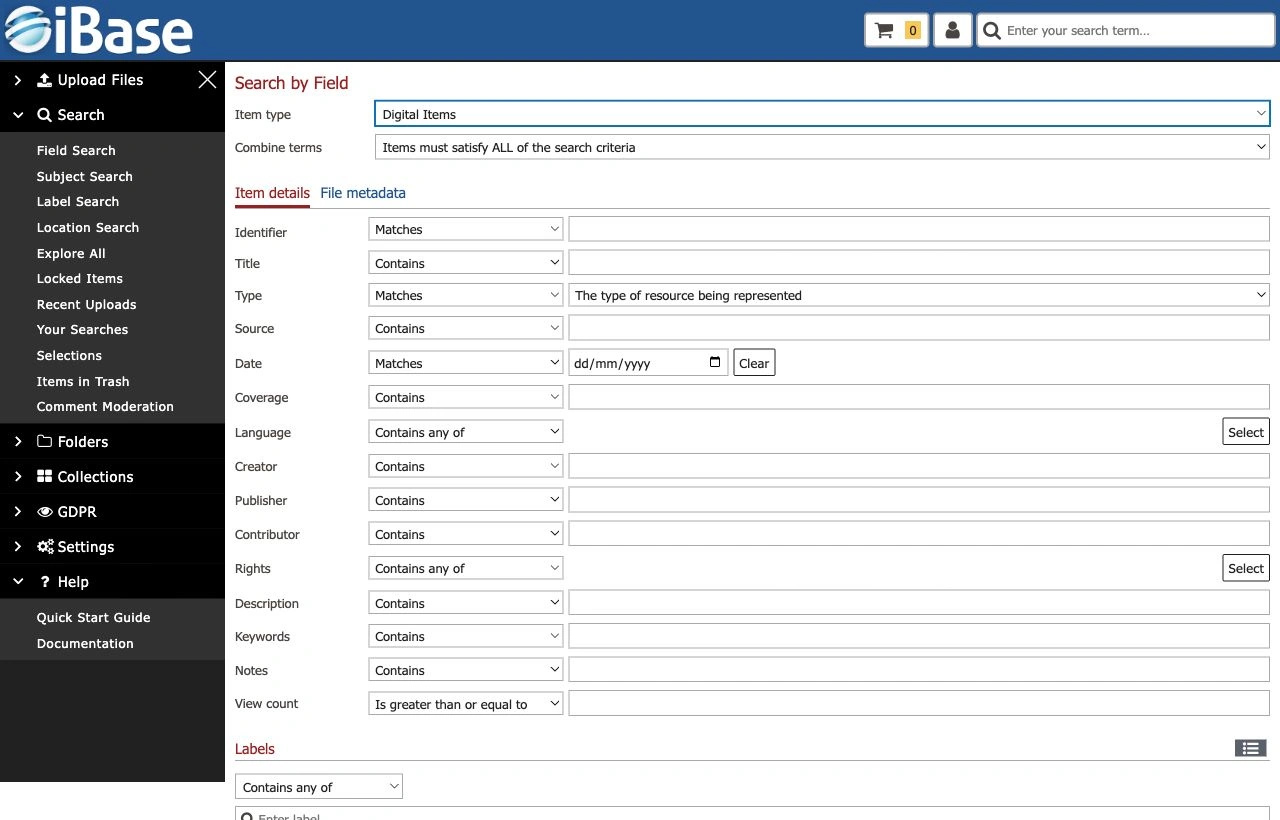
Run a Field Search
- Open Field Search.
- Choose the Item type, such as Digital Items or Consent Items.
- Use Combine terms to choose whether items must satisfy all criteria or at least one criterion.
- Use Item Details and File Metadata to find the right fields.
- Enter values against the configured fields on your site. Examples might include identifier, title, type, source, date, location, coverage, creator, credit, rights or local classification fields.
- Choose the right operator, such as Is empty, Matches or Contains.
- Add label, content warning or commerce filters if they are relevant.
- Run the search, or reset the form if you need to start again.
Use a Result List
Result pages show the current title and item count, page controls, Search Within or Search within results controls, selection controls, Share, More, Display Options, Save Search and item links.
- Use page controls to move through long result sets.
- Use Show / Hide Toolbar if the result-list actions are hidden or taking up too much space.
- Use Display Options to adjust how results are shown.
- Use Save Search when a useful set of criteria should be available again later.
- Use selection controls when you need to build a working set.
- Use Share where a result list or selected group needs to be shared.
- Use More for actions such as New Smart Collection, Compare Selected, Reorder, Export Data, Extract Asset Metadata, Check Integrity and Create Surrogates.
Refine Current Results
Search Within narrows the current result set instead of starting again from scratch. It is useful after Quick Search, Explore All or another search route returns a broad set of results.
- Use By Field to add another field-based filter.
- Use By Subject, By Label or By Location when controlled terms or places should narrow the list.
- Use By Folder / Collection to limit results to a known group.
- Use By Your Searches where a saved search should refine the current result set.
Open and Review Items
- Choose an item title or thumbnail from the result list.
- Check the item page for preview, item details, workflow state, content warnings, permissions and available actions.
- Use tabs such as Description, Keywords, Notes, File Metadata, Audio/Video Events, Labels, Subjects, Links and Collections with this item for deeper review.
- Return to the result list when you need to continue reviewing the wider set.