
Metadata
What Item Details Are For
Item details are the descriptive fields that help people recognise, search, filter and use an item correctly. iBase metadata schemas are often customised, so field names, tabs and required values can vary between sites, item types and workflows.
- Use item details for stable catalogue information.
- Use description, classification and rights fields, where configured, to support discovery and responsible reuse.
- Use keywords and notes according to local metadata rules.
- Check rights, credit and warning fields before changing information that affects reuse.
Where to Find It
- The item page usually shows a set of configured descriptive fields. Examples can include iBase ID, Identifier, Title, Type, Source, Date, Coverage and Language.
- Authorship and usage examples can include Creator, Publisher, Contributor, Credit and Rights.
- Description, Classification, Rights, Keywords and Notes can appear as tabs or panels according to the local schema.
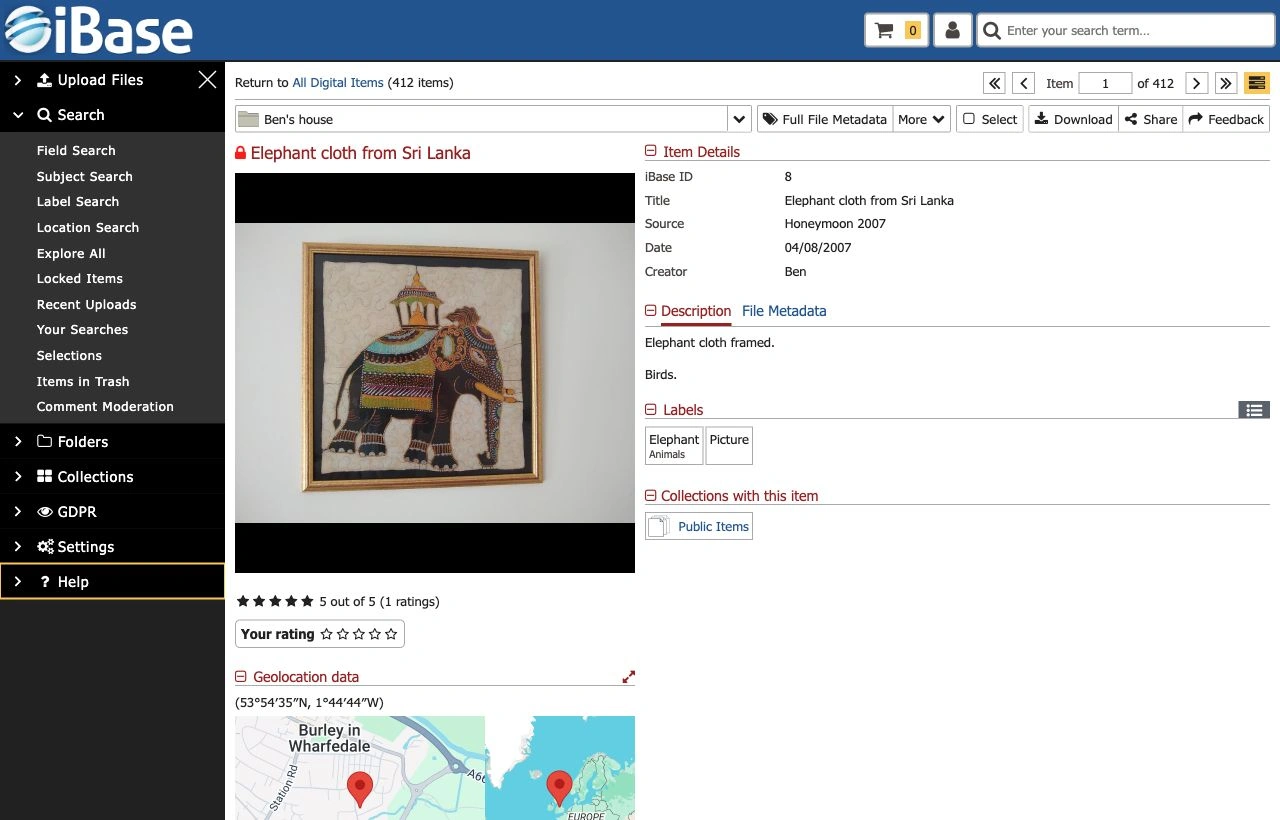
Before Editing
- Open the item from a result list, folder, collection or direct link.
- Check that the item page is showing editable fields for your role.
- Check whether the item is locked or already being edited by another user.
- Confirm that you are editing the correct item type and record.
- Check local rules before changing rights, credit, consent, source, warning, commerce or geolocation information.
Save behaviour: users with sufficient permission may see editable fields directly. Some changes save automatically, while other screens show a manual save or update control. Check the controls shown before leaving the page.
Edit Item Details
The Item Details area contains configured fields commonly used for recognition, filtering and search. Treat the field names below as examples; your site may use different labels or organise them into different tabs.
- Identifiers, titles and item types help users recognise the item.
- Source, date, coverage, language, location or classification fields can support discovery and filtering.
- Creator, publisher, contributor, credit, rights or licence fields can describe authorship, attribution and use.
- Content warnings, commerce options, geolocation fields or other local fields may appear where configured.
- Review the existing values before typing over them.
- Update only the fields that need to change.
- Use agreed formats for dates, names and identifiers.
- Pause after edits where automatic saving is enabled, then check that the displayed value is still correct.
- Leave uncertainty in an approved field or note rather than hiding it in unrelated text.
Use Descriptions, Keywords and Notes
Descriptive tabs support different types of text. In iBase, Description, Keywords and Notes appear as tabs or panels on the item page.
- Use Description for public or catalogue description text.
- Use Keywords for searchable terms that are not managed as labels or subjects.
- Use Notes for internal context according to local policy.
- Avoid putting private, rights-sensitive or workflow-only information in public-facing description fields.
Good descriptive writing
- Make the item recognisable without repeating every visible detail.
- Prefer clear names, dates and places where they are known.
- Do not guess facts that should be verified.
- Keep terminology consistent with labels, subjects, suggested keywords and existing records.
- Review automatically suggested tags before treating them as approved descriptive metadata.
Check the Record After Editing
- Where automatic saving is active, allow the page to save before moving away.
- Reopen or review the item page after editing.
- Check title, identifier, rights, credit and warning fields where they were changed.
- Use Quick Search or a targeted search to confirm the item can be found using expected terms.
- Review a sample of related records if the same metadata convention should apply elsewhere.
Note: if your iBase site shows manual save or update controls, use those controls before leaving the page.